Completing Step 3 Option 1: Data Feed Upload
Description
Use this procedure to submit the data feed by uploading a text file.
If you would like to submit the data feed by entering data manually, see Completing Step 3 Option 2: Manual Data Entry.
Important Notes:
- Data for all of the schedules will be replaced with the contents of the file you are uploading.
- Each schedule must be reviewed before proceeding to Step 4: Finalizing the Data Feed.
- If you are uploading a data feed, prompts will not be displayed.
Automatic File Naming
The system automatically names the uploaded AFR PDF file. The file naming format is outlined below.
- First 6 digits―County-District Number
- a―Or other appropriate alpha designation based on the file type
See the table below for a listing of the alpha designations.
| Alpha Designation | File Type |
|---|---|
| a | AFR (for public view) |
| cparpt | AFR Pages with Signatures (internal TEA use only) |
| l | L1 Schedule |
| mglt | Independent Auditors' Management Letter |
| df | AFR Data Feed File (for Step 3: Data Feed Upload) |
- ####―Four-digit fiscal year
- v#―v for the version of the file uploaded followed by the version number (examples: v1, v2)
- PDF―The file extension; this may also be a TXT file extension for the data feed file upload.
Examples
999999a####v#.PDF or 999999df####v#.TXT for data feed upload
Procedure
- In the District Name or CDN box, either:
- Confirm the CDN that is displayed by default OR
- If you work with multiple schools, select the CDN to be displayed.

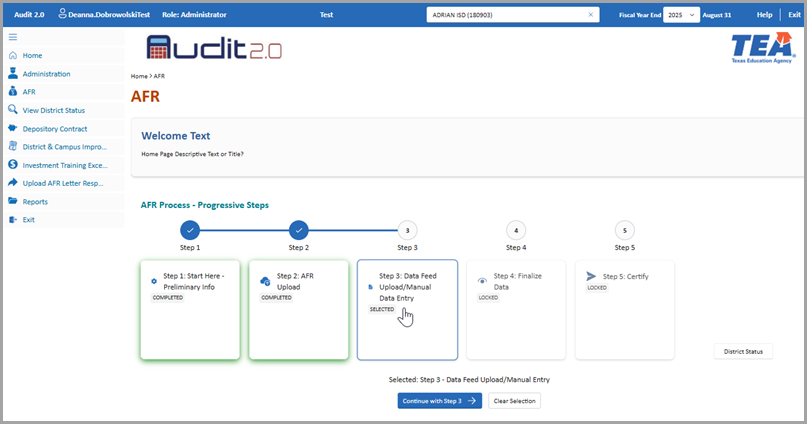
- Click AFR. On the AFR Process - Progressive Steps page, click Step 3: Data Feed Upload/Manual Data Entry which enables the Continue with Step 3 button. Then click Continue with Step 3.
- On the Step 3: Data Feed Upload/Manual Data Entry page, either drag and drop the file to be imported into the file import area, or click browse to select the file location.
Important: Only one file at a time can be uploaded, and it must be 1 MB or less in size.
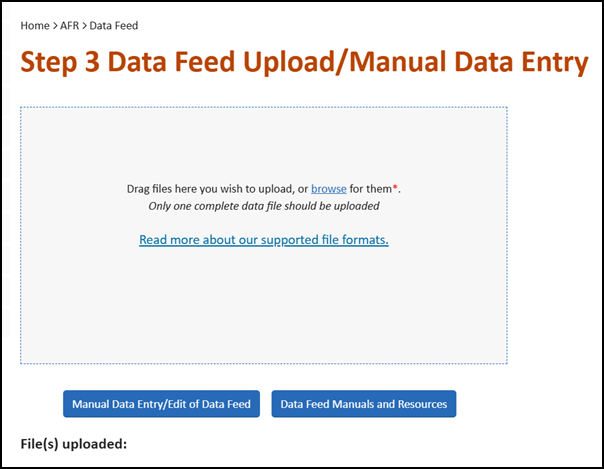
- After a file is uploaded, review the name of the uploaded file displayed at the bottom of the page under File(s) uploaded.
Note: Only files uploaded during the current session are displayed.
- If the upload is successful, review the success message: The file you are uploading will replace all data in your schedules with the contents of this file. Would you like to upload this file? Either click Yes to proceed with replacing the data or No to close the message.
Note: The system will send an email to your user ID stating whether the file upload was successful.
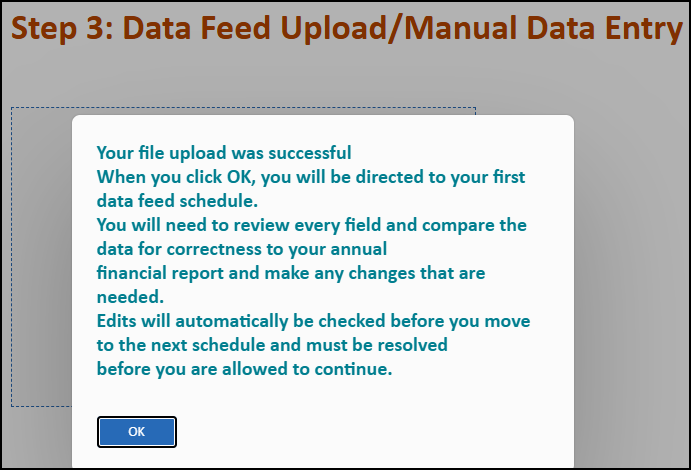
- After you click Yes and the system uploads the file, a message is displayed: Your file upload was successful.
Important: You will need to review each schedule for consistency with your annual financial report. To proceed to the first data schedule page, click OK.
- After completing the last schedule, click Next.
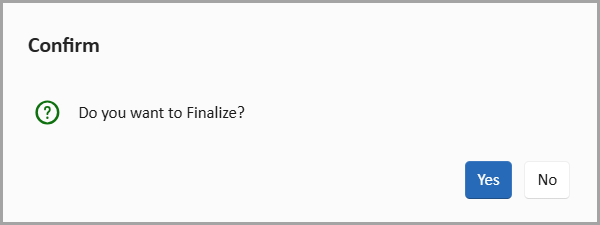
Note: After you click the Next button on the last schedule, the system displays the prompt shown below: "Do you want to finalize?" If you select Yes, the system locks Steps 1, 2, and 3 and prevents further editing on those pages. The completion of Step 4: Finalizing the Data Feed is required before Steps 1, 2, and 3 can be unlocked with the reopen process if needed.
See Also: Reopen Process
- In the confirmation prompt, click Yes to confirm that you want to finalize the data feed.
Data Schedule User Help
To view detailed instructions about completing data schedules, go to the Completing Data Schedules section in this topic.