View District Status
Description
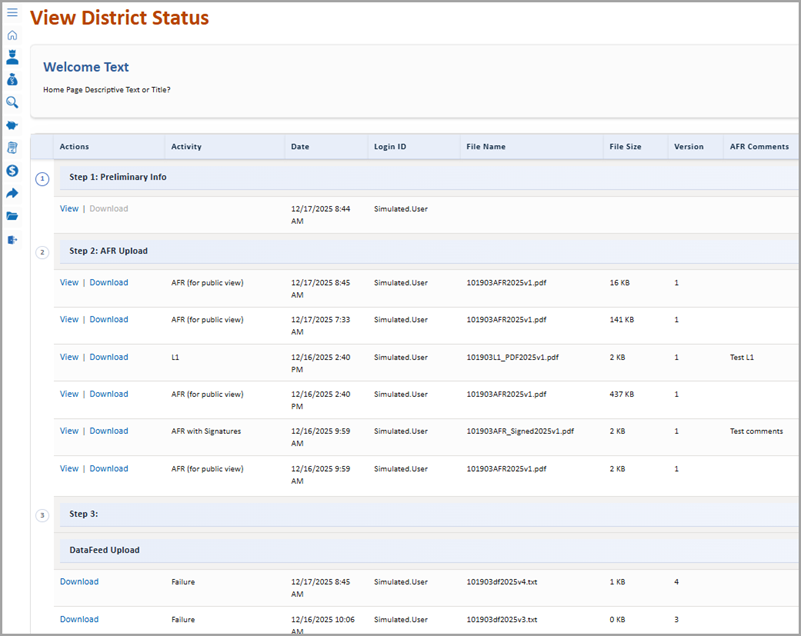
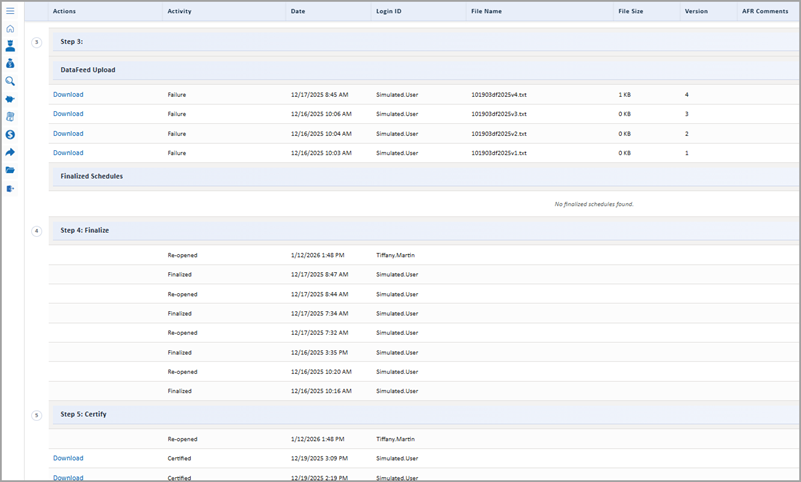
Use this procedure to review files relevant for each of the five AFR steps. This page displays a header for each of the five AFR steps. Under each header is a list of files that the system processed for the step.
The information displayed for the files includes: date and timestamps, the system ID of the person who processed the records, the file name and file size, version number, and comments.
View and Download Options
When you click View under the Step 1 header, the system displays the Step 1: Start Here - Preliminary Info page. To go to the View District Status page from the Step 1: Start Here - Preliminary Info page, do one of the following:
- If you have the role of administrator, TEA Personnel or Audit Personnel, choose View District Status from the left side panel or click the Back button on your browser.
- For users with other roles, click the Back to Steps button to return to the AFR home page. Then click the District Status button on the AFR home page.
When you click View for files under the headers for Steps 2 through 5, the system displays the file in a new browser tab.
If you used a text file to upload the data feed, you can view and download the file under the Data Feed Upload header. If you did not upload a text file, on the Data Feed Upload header, the following message will be displayed: "If a file does not appear below, the Schedules were manually entered." For details about submitting a data feed file, see the user help topics under Completing Step 3: Data Feed Upload/Manual Data Entry.
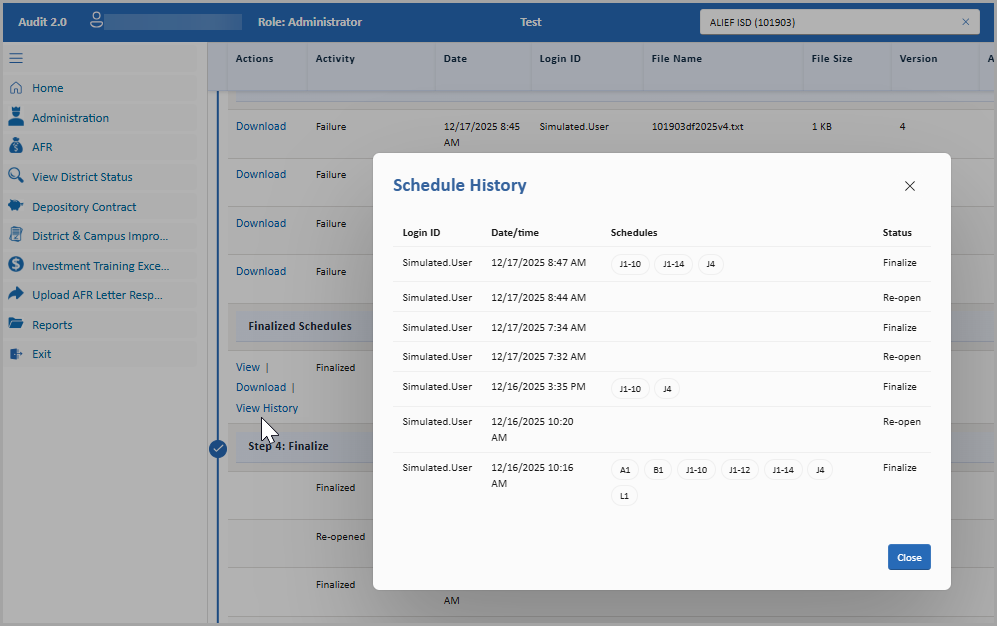
Under the Finalized Schedules header, click View History to display the Schedule History dialog box, which displays changes to the schedules and the AFR status, as shown below.
The Download links are available only after a file is finalized. After you click Download, the system displays a message when the download is completed message, as shown below. You can then open the downloaded file.
View District Status: Top and Bottom Sections