Completing Step 1: Entering Preliminary Information
Description
Use this procedure to complete the fields related to audit firm details and other AFR-related information that will display or hide certain schedules.
Important: No auto save function is available for the Step 1: Preliminary Information page. To save all inputs or revisions, either click Save or the Continue to Step 2: AFR Upload button.
Procedure
- In the District Name or CDN box, either:
- Confirm the CDN that is displayed by default OR
- If you work with multiple schools, select the CDN to be displayed.

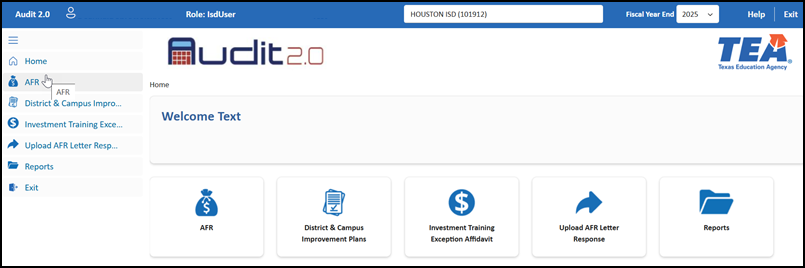
- Choose AFR.
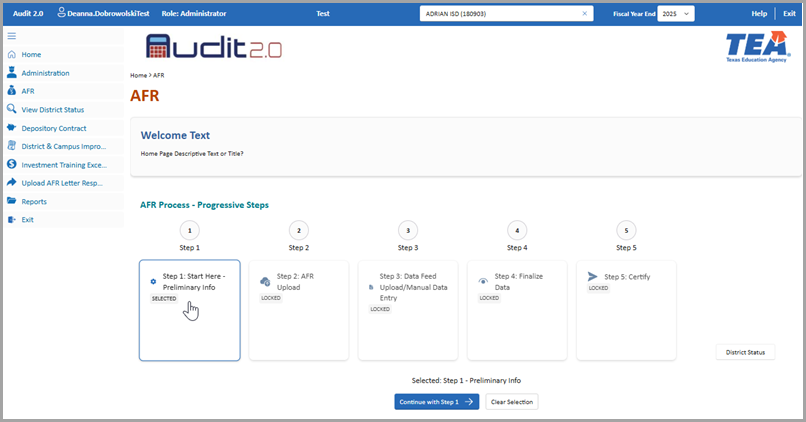
- On the AFR page, click Step 1 Start Here Preliminary Information which enables the Continue with Step 1 button. Then click Continue with Step 1.
- On the Step 1: Start Here - Preliminary Info page, begin by completing the Fiscal Year-End for AFR being submitted box.
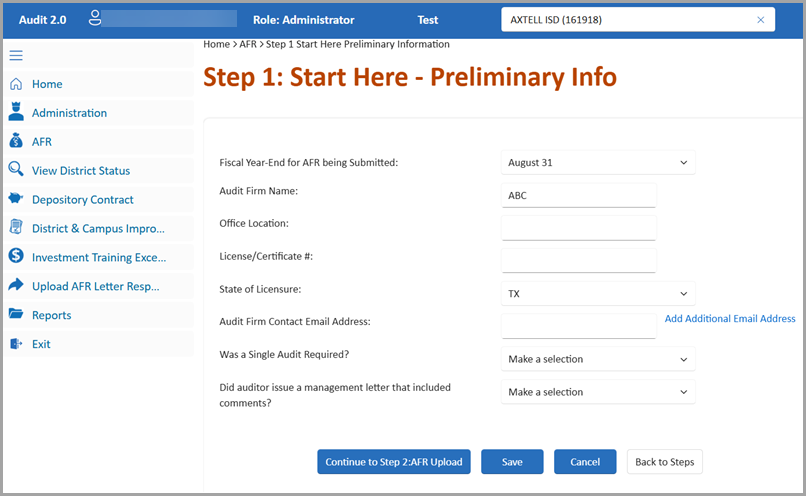
- Fiscal Year-End for AFR being submitted—Select either June 30 or August 31.
Note: If the date you need to select is different than the end date of the previous fiscal year, the system will prompt you to confirm whether the date has changed.
- Select Yes if your district has changed the fiscal year end date. When you select Yes, an additional J1 data schedule will need to be completed in Step 3: Data Feed Upload/Manual Data Entry.
- Select No if your district did not change the fiscal year end date. Then contact the Financial Compliance Division.
Important: For the fiscal year 2025 AFR submission (the first year of the Audit 2.0 system implementation), the prompt above does not apply. For the fiscal year 2025 AFR submission, the fiscal year end date (June 30 or August 31) selected in Step 1: Preliminary Information should also update the fiscal year end date shown in the header. The J1-10 schedules are pre-populated for the school districts that change the fiscal year end date from August 31 to June 30. If your district had the fiscal year end date change, note that both of the J1-12 and J1-10 schedules are completed.
- Use the web site https://www.tsbpa.texas.gov/ as a reference to enter the following data exactly as it is displayed on the web site under the License Lookup tab:
- Audit Firm Name
- Office Location—Enter only a city name. Do not enter the state name.
- License/Certificate #
- State of Licensure
- Continue completing the remaining boxes:
- Audit Firm Contact Email address—Enter the email address for the preferred contact of the firm. Avoid using general email addresses. If needed, use the Add Additional Email Addresses link to add more email addresses.
- Was a single audit required?—Specify Yes or No. When Yes is selected, the K1 data schedule and the bottom portions of the K2 and K3 data schedules will appear in Step 3: Data Feed Upload/Manual Data Entry. (This function will be available in the future.)
Note: A single audit is required if federal expenditures ≥ $750,000 in a fiscal year (2 CFR Part 200, Subpart F). For fiscal years beginning on or after October 1, 2024: the threshold increases from $750,000 to $1,000,000.
- Did your independent auditor issue a management letter that included comments?—Specify Yes or No. When Yes is selected, the M1 data schedule will appear in Step 3: Data Feed Upload/Manual Data Entry. (This function will be available in the future.)
Note: A management letter is a formal communication issued separately from the audit report by an independent auditor to an organization's management at the conclusion of an financial audit. It highlights internal control deficiencies, operational inefficiencies, or areas for improvement that, while not severe enough to be classified as material weaknesses or significant deficiencies in the audit report, still warrant attention.
- Choose one of the following options:
- Continue to Step 2: AFR Upload—Saves your entries and enables you to proceed to the screen for Step 2: AFR Upload.
- Save—Saves your entries and continues to display the current screen for Step 1 Entering Preliminary Information.
- Cancel—Keeps any information you previously saved and displays the view of the Home > AFR page.
- Back to Steps—Returns your view to the AFR page with the Progressive Steps buttons.