Using the Query Tool
Description
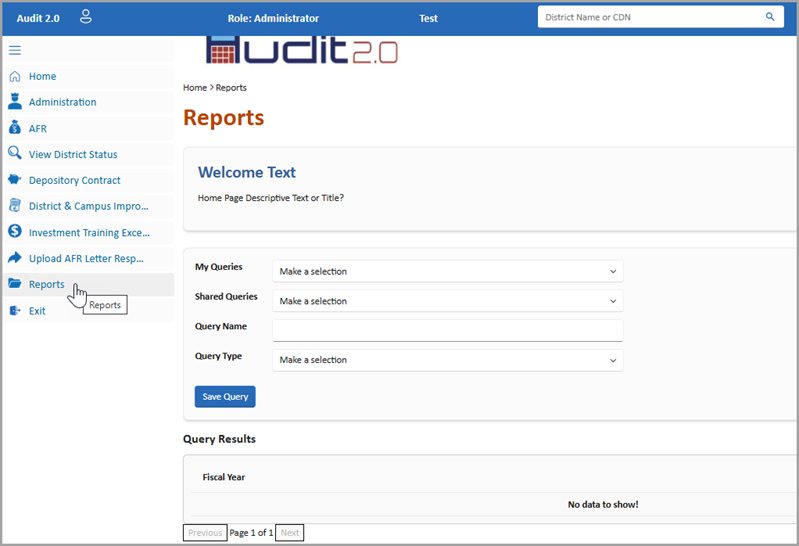
This tool was developed for internal TEA users to create and share queries for reporting purposes. To access the Query Tool, on the Audit 2.0 home page, click the Reports panel.
Run a Saved or Shared Query
- To run a query you saved previously, in the My Queries list, select the name of the saved query. OR
- To run a query previously shared with you, in the Shared Queries list, select the name of shared query.
Create a New Query
- To create a new query, in the Query Type list, select the category relevant for the query.
- In the Query Name box, enter a name for the query.
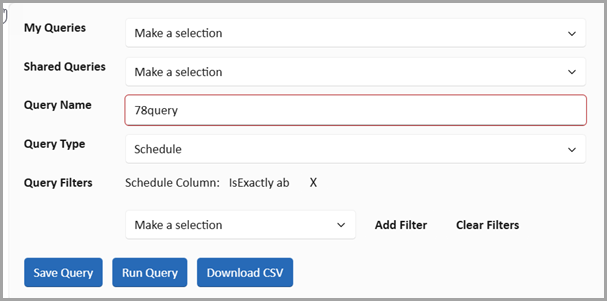
- Use the Add Filter option and the corresponding drop-down list as needed to specify criteria that results must match. You can add multiple filters.
- If you need to remove a filter, use Clear Filters. (Caution: Clear Filters removes all of the filters you added.)
- Click Save Query, which enables you to access the query in the future from the My Queries list.
Share a Query
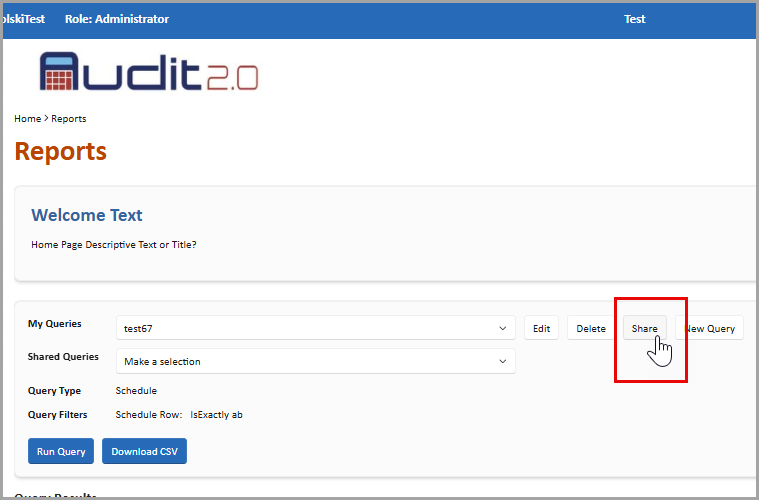
- To share a query you created, select the query in the My Queries list. Then click Share.
- In the Share Query dialog box, click the role(s) that will have access to the query in the Share with roles box and/or specify user IDs (one per line) in the Share with users box.
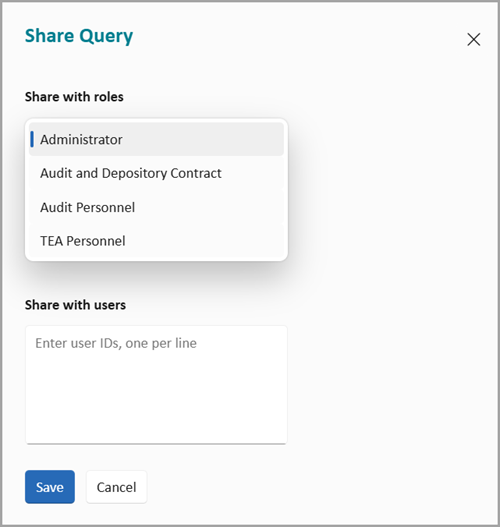
- Click Save.
Change or Delete a Query
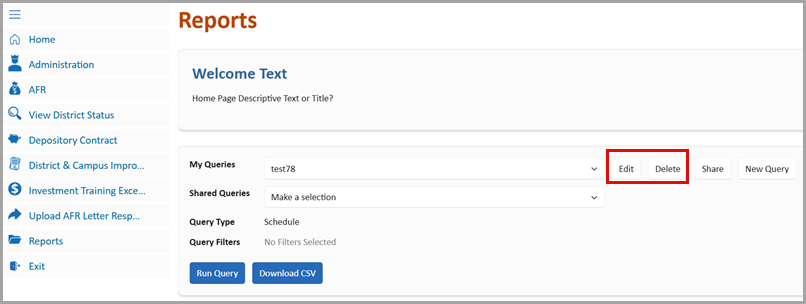
After saving a query, you can use the Delete button to delete it if needed, or you can use the Edit button to change the query type and/or filters.
Download CSV
If you would like to download the results of a query, after running a query, click Download CSV. A CSV file for the query will then be available in the Downloads folder on your device.